

How to Use Google Tasks on Mac and Windows Desktop
Google Tasks is a lightweight task manager you can use with the same account as Gmail and Google Calendar. There is, however, no official desktop app for Mac or Windows.
This article compares four ways of using Google Tasks on your desktop, focusing on what each approach can and cannot actually do. If you just want the summary, skip to the comparison table.
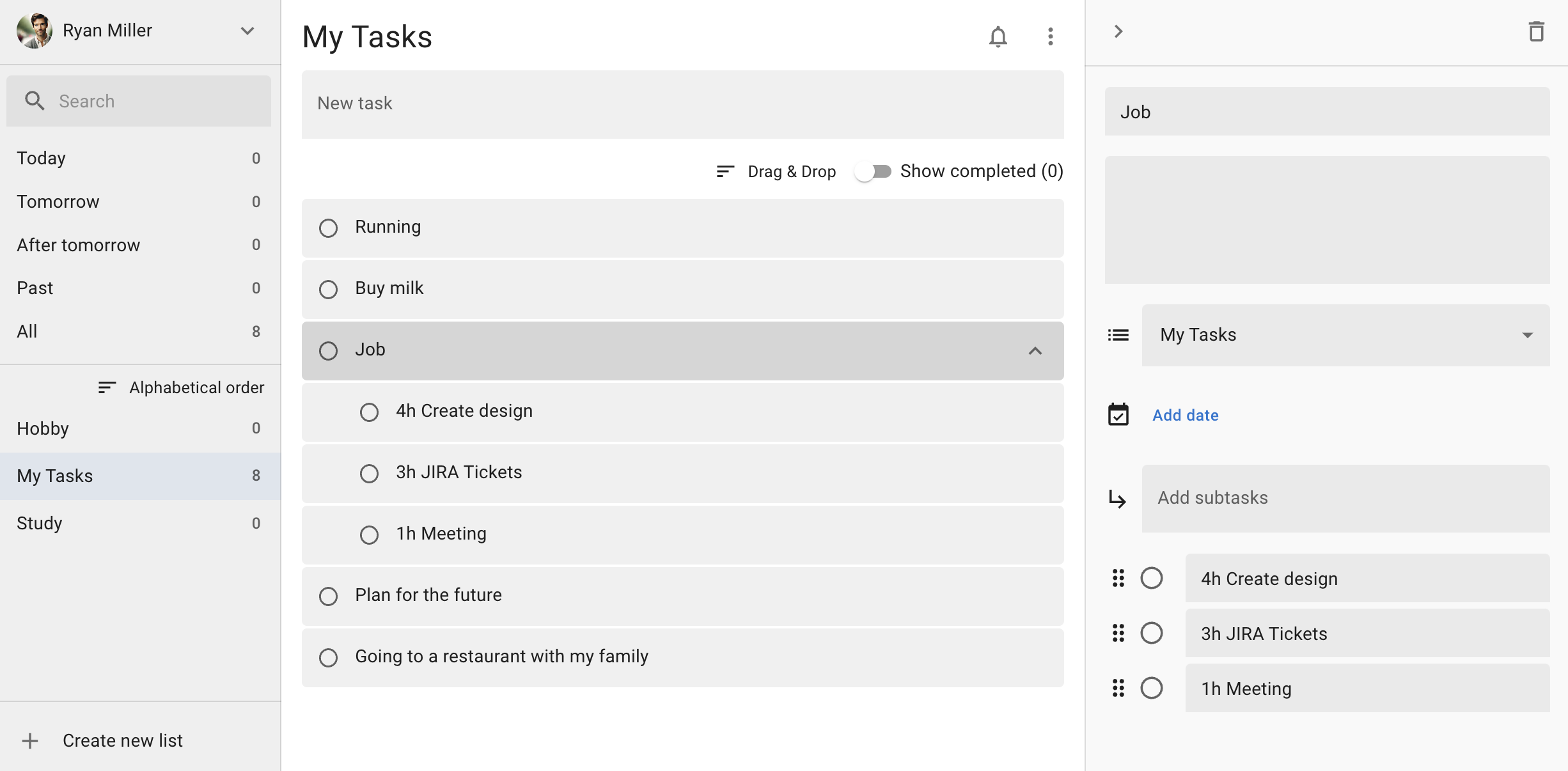
There is no official desktop app
Google offers Google Tasks on the web, on Android and on iOS, but as of August 2026 it has not released a native app for Mac or Windows. People have been asking for a desktop app in the Gmail help forum for years, yet Google has never announced any plans to build one.
So if you want it on your desktop, you will need to choose one of the approaches below. All of them work today.
Option 1: use it in your browser
The simplest approach is to open tasks.google.com in your browser. It used to be available only as a side panel in Gmail and Google Calendar, but these days it works as a standalone full-screen page.
While you are in Gmail or Google Calendar, you can also open Google Tasks from the icon in the side panel on the right. Handy when you want to add a task while you are reading an email.
What works well
There is nothing to install, and you always have the latest version. It also works on locked-down work machines where you cannot install any software.
What to bear in mind
The tab soon gets buried among all the others, and reaching it takes a few clicks. There is no keyboard shortcut to bring it up quickly either.
Option 2: install it as a PWA
Google Tasks can be installed as a PWA (Progressive Web App). It then opens in a window of its own, away from your browser tabs, and its icon can live in the Dock or on the taskbar, so it feels far closer to an ordinary app than to a web page.
In Chrome
Open tasks.google.com, click the install icon on the right-hand side of the address bar and choose Install.
In Microsoft Edge
Open tasks.google.com, then open the three-dot menu at the top right and choose Apps, followed by Install this site as an app.
What works well
It is free and takes a couple of minutes. Simply getting it out of your tabs already saves a great deal of hunting around.
What to bear in mind
It looks different, but underneath it is still the web version. Nothing new is added, so there is no full-text search and no global shortcut.
Option 3: use a Chrome extension
The Chrome Web Store has plenty of extensions that open Google Tasks in a pop-up or a separate window. One click on the toolbar icon and you are in, which suits anyone who works mostly inside the browser.
What works well
If you are in the browser anyway, this is the quickest way to open it. Most extensions are free to try.
What to bear in mind
It requires a Chromium-based browser such as Chrome or Microsoft Edge. Extensions also vary widely in quality, and they all share one limitation: close the browser and they are gone.
Option 4: use a dedicated desktop app
If you want it entirely independent of the browser, or you need features the web version does not offer, there are desktop apps built specifically for Google Tasks. ToDo for Google, which we develop, is one of them.
It syncs through Google's official API, so anything you edit in the app appears in Google Tasks on the web and on your phone. On top of that, it adds the following features that the web version does not have.
- Three-column full screen: see your task lists, your tasks and the details of a task side by side. Unlike the narrow side panel, you have the whole screen to compare a list with its contents.
- Keyboard shortcuts: create, search, complete and set due dates entirely from the keyboard, so you can clear tasks without reaching for the mouse.
- Global shortcut: press Command (Control) + Shift + A from any app to bring up a quick add window, so you can capture a task the moment it occurs to you.
- Full-text search: search every task by keyword and find the one you need even when you have forgotten which list it went into.
- Due date filters: switch between Today, Tomorrow, After tomorrow, Past and All. Useful when you only want to see what is due today.
- Dark mode: switch between light and dark, or follow your system setting automatically.

On security, sign-in is limited to Google OAuth 2.0. Your password is only ever entered on Google's own pages, so the app never receives it and never stores it. Nor is your task data sent to any server other than Google's.
It is a free download for Mac and Windows. There is a 7-day free trial, and you only buy the one-off full licence if you decide you like it. On Windows it is also available from the Microsoft Store, where it is listed as TasksDesktop.
Keyboard shortcuts you can use
ToDo for Google supports the shortcuts below. Because due dates are set with the number keys, working through a backlog goes quickly.
| Action | Keys |
|---|---|
| Create a task | Command (Control) + N |
| Search tasks | Command (Control) + F |
| Complete / uncomplete a task | Space |
| Select the previous or next task | ↑ / ↓ |
| Set the due date to Today | 1 |
| Set the due date to Tomorrow | 2 |
| Set the due date to After tomorrow | 3 - 9 |
| Remove the due date | 0 |
| Add a task from any app | Command (Control) + Shift + A |
Comparing the four options
| Capability | Browser | PWA | Extension | Dedicated app |
|---|---|---|---|---|
| Shows lists and details side by side | No | No | Varies | Yes |
| Runs in its own window | No | Yes | Varies | Yes |
| Global shortcut to add a task | No | No | No | Yes |
| Full-text search across all tasks | No | No | Varies | Yes |
| Filter by due date (Today / Tomorrow / Past) | No | No | Varies | Yes |
| Works with the browser closed | No | Yes | No | Yes |
| Installation | None | From the browser | From the store | Install the app |
Note: the Chrome extension column reflects general tendencies, since extensions differ a great deal from one another.
Which one should you choose
If you simply want to try something out, installing the PWA is the easiest route. It is free, takes a couple of minutes, and you can just uninstall it if you do not get on with it.
If your browser is open all day anyway, a Chrome extension gets you there in the fewest clicks.
If, on the other hand, you want to capture tasks the instant you think of them, dig a particular task out of a long list, or see only what is due today, a dedicated app is the better fit. Those three things are precisely what the web version does not do, so a PWA or an extension will not solve them.
Frequently asked questions
Is there an official Google Tasks desktop app?
Not as of August 2026. Google offers the web, Android and iOS versions only. To use it on your desktop you will need one of the approaches described above.
What is the difference between a PWA and a dedicated app?
A PWA shows the web version in a window of its own, so it does exactly what the web version does. A dedicated app is built separately on top of the Google Tasks API, which is how it can add things like a global shortcut and full-text search.
Is my task data safe?
With ToDo for Google, sign-in is limited to Google OAuth 2.0, so your password is only entered on Google's own pages. The app never receives or stores it, and your data is not sent to any server other than Google's. If you use another app or extension, it is worth checking that it uses OAuth in the same way and reading its privacy policy.
Is it free?
ToDo for Google is a free download on both Mac and Windows. You get a 7-day free trial and only buy the one-off full licence if you decide you like it. It is not a subscription, so there is no auto-renewal and no extra charges. The browser and PWA options are free.
Does it sync with Google Tasks on my phone?
Yes. Every option here reads the same Google Tasks data, so anything you change on your desktop shows up in the Google Tasks app on your phone.
Try ToDo for Google
A desktop app for using Google Tasks full screen on Mac and Windows. Free to download.