

Google Tasks for Windows: Use Google Tasks as a Desktop App
Google does not offer a Google Tasks app for Windows. ToDo for Google is a Google Tasks client that runs as a regular Windows desktop app and works with the tasks you already have in Gmail, Google Calendar and on your phone.
This page covers how to install it on Windows, what it can do, what it costs, and common questions.
Is there an official Google Tasks app for Windows?
No. As of November 2026, Google offers Google Tasks on the web, Android and iOS only. On Windows you can open tasks.google.com in Chrome or Edge, or install it as an app (PWA), but both show the web version as it is. To get features the web version does not have, you need a third-party Google Tasks desktop app such as ToDo for Google.
The browser, PWA, Chrome extensions and dedicated apps are compared in this article: How to Use Google Tasks on Mac and Windows Desktop
What is ToDo for Google?
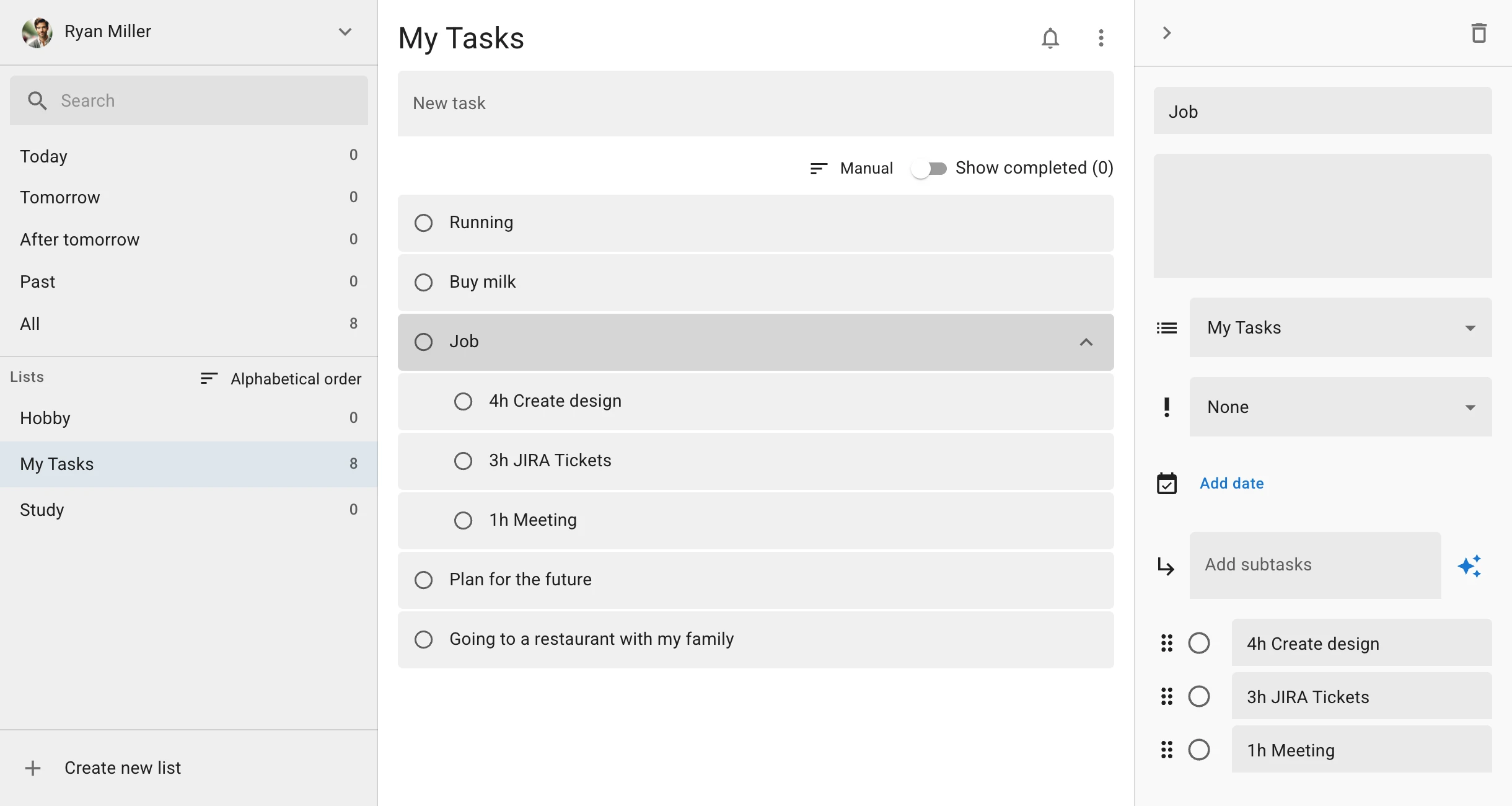
ToDo for Google is a Google Tasks client for Windows, Mac and the web, developed by us. It reads and writes your tasks through Google's official Google Tasks API, so changes you make in the app show up in Google Tasks on the web and on your phone. There is nothing to migrate: sign in and your lists are there.
On Windows it is installed like any other desktop app, so it opens in its own window without a browser.
How to install it on Windows
- Click Download on this page and choose Windows. The installer, ToDo-Setup.exe, is downloaded.
- Run ToDo-Setup.exe and follow the installer. You can choose the install folder, and a ToDo shortcut is added to your desktop.
- Open ToDo and sign in with your Google account. Your Google Tasks lists appear right away.
Requirements: Windows 10 or later (64-bit).
For the first 7 days you can use every feature for free, and you are never charged automatically.
Main features
Along with everything you can do in Google Tasks, the Windows app adds the following.
- Three-column full screen: see your task lists, your tasks and the details of a task side by side, using the whole screen instead of a narrow side panel.
- Global shortcut: press Control + Shift + A in any app to open a quick add window and capture a task the moment you think of it.
- Task tray icon: check and add tasks in a small window from the icon in the Windows task tray.
- Full-text search: search the titles and details of every task across all of your lists.
- Due date filters: show the tasks due Today or Tomorrow, or the ones past due, across all lists at once.
- Calendar: see tasks with due dates on a calendar and drag them to another day to change the date. With the full license, you can also show your Google Calendar events next to your tasks (read-only).
- Multiple accounts: add several Google accounts, such as work and personal, and switch between them from the icons on the left. This is included in the full license, and the accounts you add can be used as they are.
- Works offline: view, add, edit and complete tasks without an internet connection. Changes are saved on your PC and sent to Google Tasks automatically once you are back online.
- Keyboard shortcuts and dark mode: create, search, complete and set due dates from the keyboard, and choose light, dark or your system setting.

Pricing
The download is free, and you can try every feature for 7 days. To keep using it, buy the full license, a one-time purchase. It is not a subscription, so there is no auto-renewal.
The full license is ¥2,480 when purchased from Japan. In other countries and regions, the price for your country or region is shown on the checkout screen before you pay.
Switching between multiple accounts and showing Google Calendar events in the calendar are included in the full license. The optional Pro Plan (monthly or yearly) is only for people who want to use the AI feature a lot or attach many files to their tasks.
Frequently asked questions
Is there an official Google Tasks app for Windows?
Not as of November 2026. Google offers Google Tasks on the web, Android and iOS only. To use it as an app on Windows, you can use a third-party desktop app such as ToDo for Google, or install the web version as a PWA from Chrome or Edge.
Is it available in the Microsoft Store?
Yes. In the Microsoft Store it is listed as TasksDesktop. You can also download the installer (ToDo-Setup.exe) from this site.
Does it sync with Google Tasks on my phone and in Gmail?
Yes. ToDo for Google uses Google's official Google Tasks API, so it works with the same data. Tasks you change on your PC show up in Gmail, Google Calendar and the Google Tasks app on your phone.
Is it free?
The download is free and you can try every feature for 7 days. After that, you can keep using it by buying the full license once (¥2,480 when purchased from Japan). The full license is not a subscription, so there is no auto-renewal and no extra charges.
Can I use more than one Google account?
Yes. Choose Add another account from the account menu at the top of the sidebar, then switch accounts from the icons on the left. Multiple accounts are included in the full license, and the accounts you add can be used as they are.
Is my task data safe?
Sign-in is limited to Google OAuth 2.0, so your password is only entered on Google's own pages; the app never receives or stores it. Except when you run the AI feature, your task data is not sent to any server other than Google's.
Try ToDo for Google on Windows
A Google Tasks client for using your tasks full screen on your Windows PC. Free to download, with a 7-day free trial.